Yes. The RayNeo Air 4 Pro plugs into a Steam Deck with the USB-C cable that comes in the box, and the picture appears within a second or two. No dock, no driver, no app, no configuration. SteamOS sees the glasses as an ordinary external monitor over DisplayPort Alt Mode and does the rest.
It is also, for most people, the single best reason to own these glasses. The Air 4 Pro has no battery and no processor — it is a screen that borrows both from whatever it is plugged into. On a laptop that is a compromise. On a handheld it is the entire point.
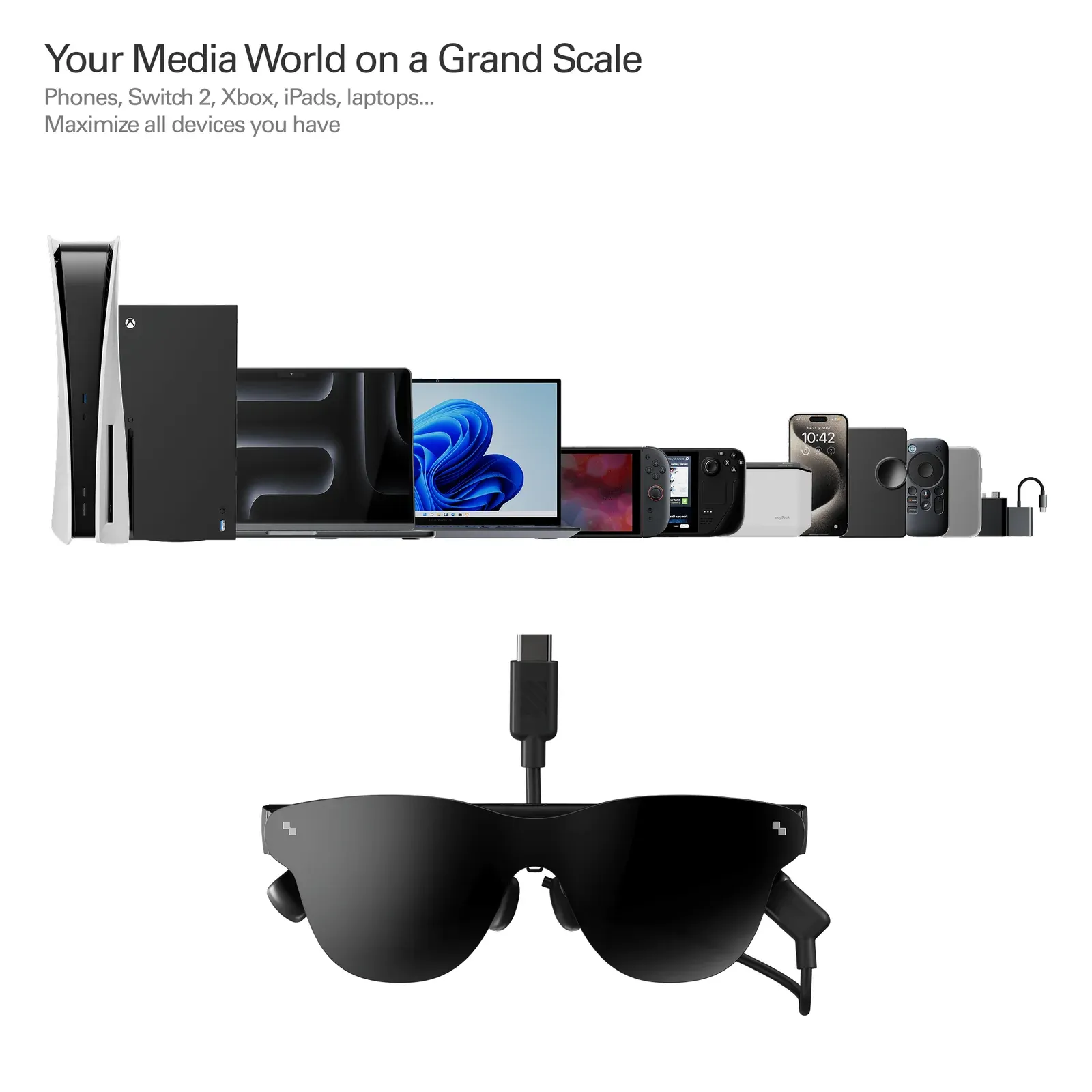 One display, every device: phone, Switch 2, Xbox, laptop, handheld. The Air 4 Pro has no OS of its own, so it works with whatever you already own. Image: RayNeo.
Why the Steam Deck is the Air 4 Pro’s best pairing
The Steam Deck has two physical problems, and they compound each other. The screen is 7.4 inches, which is small for anything with an inventory menu. And it sits below eye level, so an hour of Elden Ring means an hour of looking down.
Glasses fix both at once. The virtual screen is 201 inches viewed from 6 metres, or — the number that actually describes the experience — a 46° field of view, the same as a 135-inch screen at 4 metres. And because the panel is mounted on your face, your head stays level no matter how you sit, slouch or lie down.
| Steam Deck OLED screen | RayNeo Air 4 Pro | |
|---|---|---|
| Perceived size | 7.4 in | 201 in virtual (at 6 m) |
| Resolution | 1280 × 800 | 1920 × 1080 per eye |
| Panel | OLED | Micro-OLED (SeeYa, 0.6 in) |
| Refresh rate | 90 Hz | up to 120 Hz |
| HDR | HDR OLED | HDR10, 1,200 nits peak |
| PPD | — | 49 |
| Who can see it | everyone in the room | only you |
| Where you look | down at your hands | straight ahead |
The privacy point is underrated. On a plane, in bed next to a partner, on a train — nobody can see what you are playing. There is no backlight bleeding into the room and no screen glow on your face.
Setup: what you actually do
- Plug the USB-C cable into the Deck’s port. The Deck has exactly one USB-C port, on the top edge. Use the cable from the box — some charge-only cables carry no video lanes.
- The glasses light up. No prompt, no app. If the screen stays dark, the cable or the port is the problem, not the glasses.
- Choose mirror or extend in Settings → Display. SteamOS lists the Air 4 Pro as a second display.
Because the Deck has a single USB-C port, the glasses occupy it. That is the reason the charging question below matters, and the reason a small hub is worth carrying.
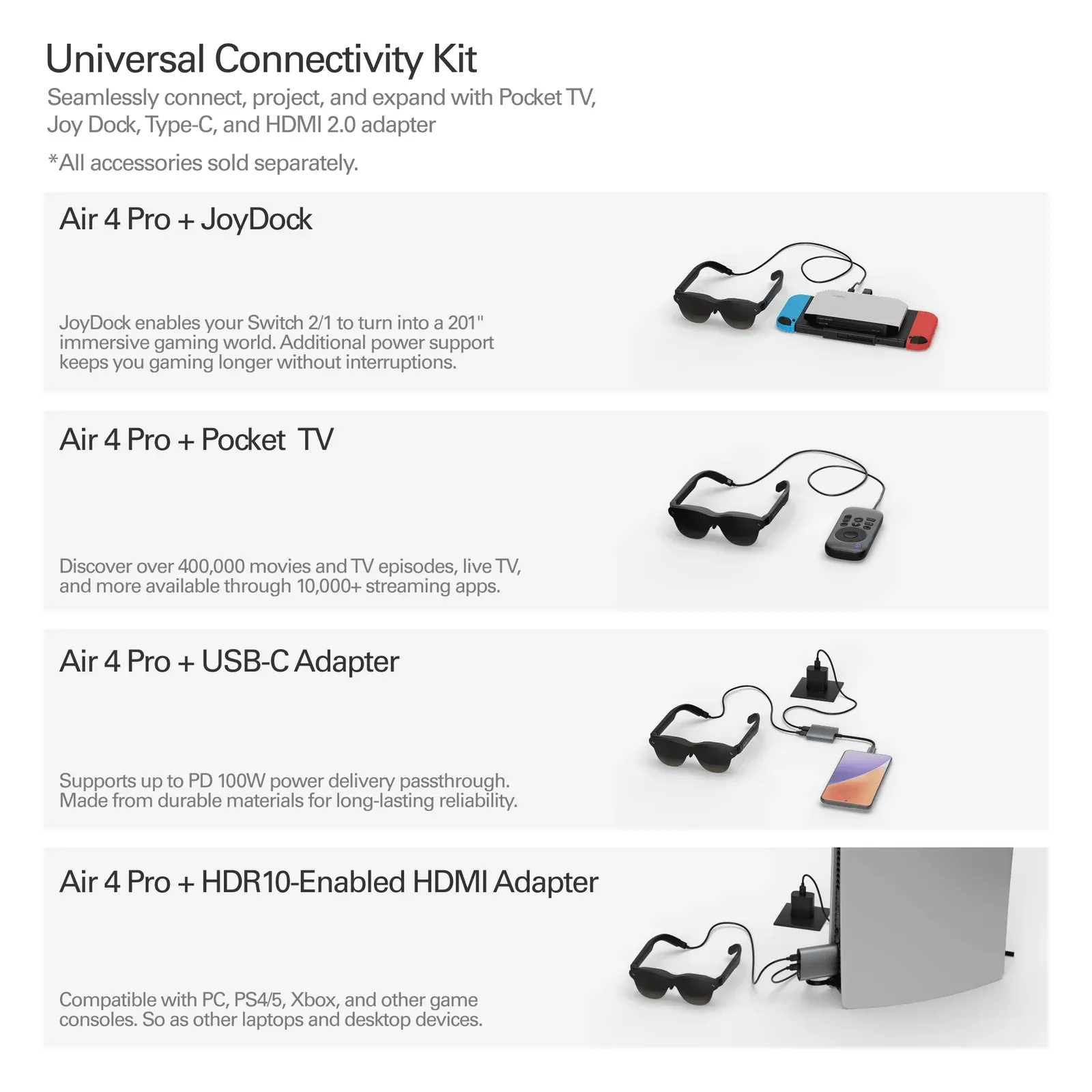 RayNeo’s connectivity kit: JoyDock, Pocket TV, a USB-C adapter with 100 W PD passthrough, and an HDR10 HDMI adapter. All sold separately. Image: RayNeo.
The refresh-rate question: 60, 90 or 120 Hz?
This is the most misunderstood part of the pairing, so it is worth separating two different numbers.
The Air 4 Pro’s panels accept up to 120 Hz. That is a ceiling, not a promise. The Steam Deck’s internal screen runs at 60 Hz on the LCD model and 90 Hz on the OLED model — but that is the built-in panel, and it has nothing to do with what the Deck can send out of its USB-C port. Valve’s own dock is rated for 1440p at 120 Hz, so the Deck is capable of driving an external display above its internal refresh rate.
What you get in practice depends on what SteamOS negotiates. Open Settings → Display with the glasses connected and check the refresh rate; some configurations settle at 60 Hz by default and it is a one-click change from there.
Then apply the honest caveat: a game has to produce the frames. On a Deck, most demanding titles land between 30 and 45 fps. A 120 Hz panel does not create frames that are not there. What it does give you is a smoother desktop, a snappier Steam UI, and less perceived motion blur — real benefits, but not the same thing as 120 fps gameplay.
Set the refresh rate to the highest value SteamOS offers, then use the Deck’s frame-rate limiter to cap the game. You get the responsive UI and predictable battery life instead of a panel idling at a rate the GPU cannot feed.
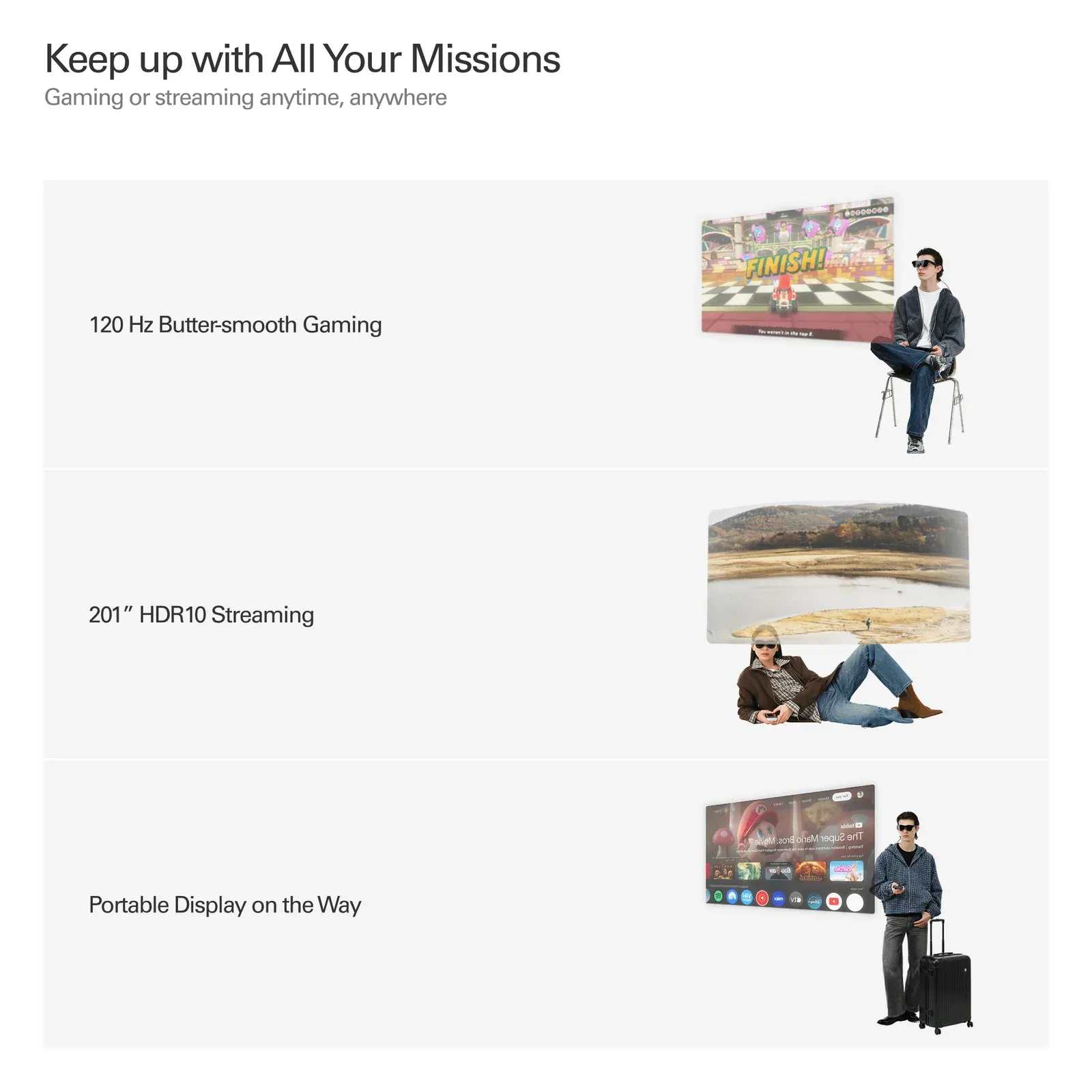 RayNeo positions the glasses around three jobs: high-refresh gaming, big-screen streaming and a portable display while travelling. Image: RayNeo.
Battery: the real cost of the upgrade
The glasses draw their power from the Deck. There is no battery inside them, so every hour of play costs Deck runtime on top of whatever the game already uses.
The Deck OLED’s 50 Wh battery lasts roughly three to six hours depending on the title. The Air 4 Pro takes a meaningful bite out of that — and because the micro-OLED panel is the main load, brightness is the lever. Dim the glasses for long sessions and you claw back a surprising amount.
Two ways to fix it properly:
- A USB-C power bank. The Air 4 Pro supports up to 100 W Power Delivery passthrough, so a bank placed between the Deck and the glasses keeps both alive.
- A USB-C hub with PD passthrough. Any decent hub does the job — it takes power in, passes video through, and hands the glasses a signal. RayNeo’s own USB-C charging adapter does the same for $35, with 4K@60Hz output and 100 W passthrough, but it adds no extra ports. RayNeo’s JoyDock ($89) is the other first-party option, though it is shaped around the Switch, so on a Deck a generic hub is usually the cheaper and more sensible buy.
Audio: good, but open
The Air 4 Pro’s quad-speaker array is co-tuned with Bang & Olufsen and it is genuinely the best audio in this price bracket. It is also open-ear by design, which means it leaks — people near you hear a thin version of your game.
Three levels of fix:
| Situation | What to use |
|---|---|
| Playing alone at home | The built-in speakers as they are |
| Playing near other people | Whisper Mode 2.0, the phase-cancellation mode |
| Flights, trains, shared rooms | The Sound Tube accessory |
The Sound Tube is a small add-on that routes audio toward your ear canal. RayNeo claims it cuts leakage by up to 80% and adds roughly 15 dB of effective volume. It is the accessory to buy if you game on planes.
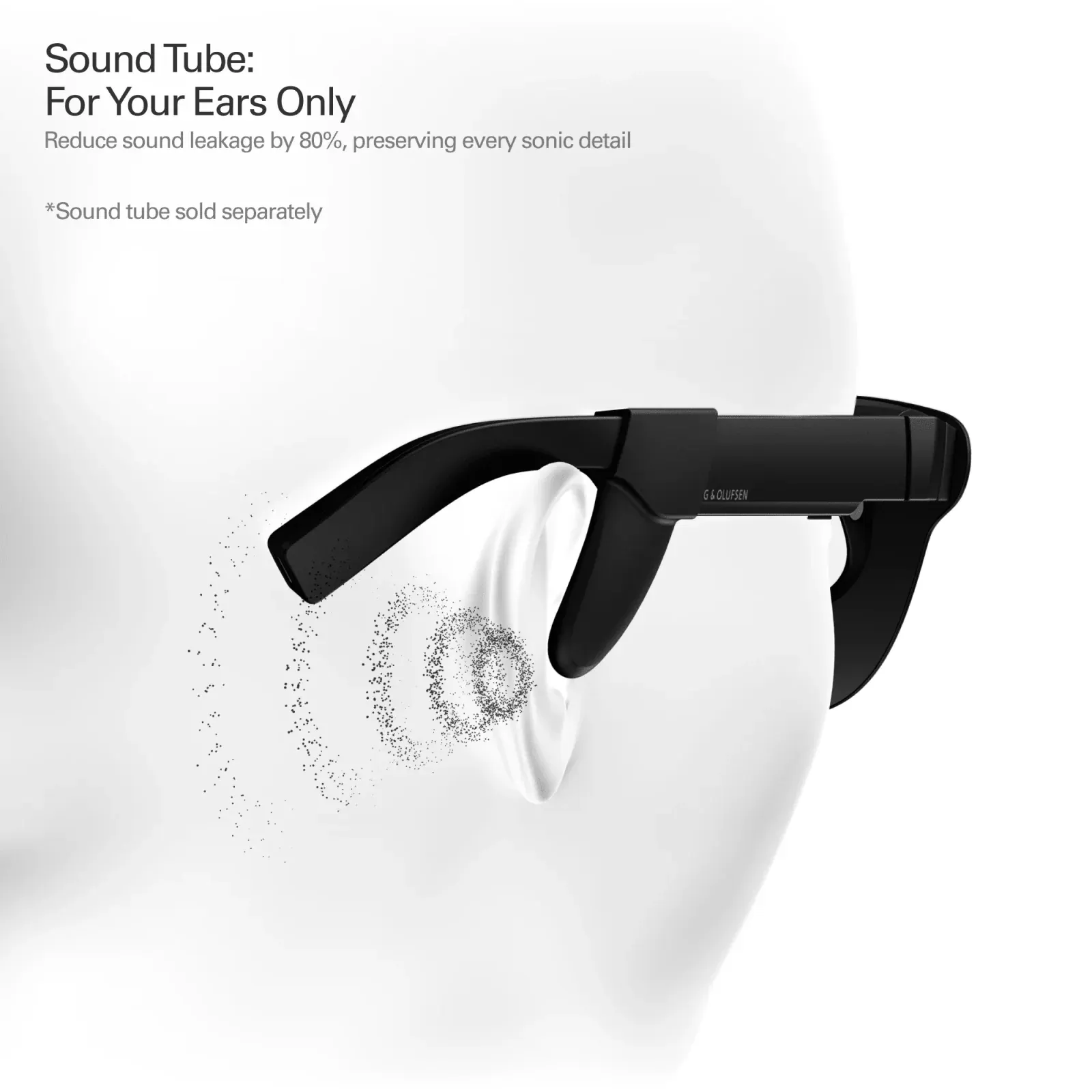 The Sound Tube clips on and directs sound at the ear canal rather than into the room. Sold separately. Image: RayNeo.
Comfort over a long session
At 76 grams with a 46.7 / 53.3 front-to-rear weight split, the Air 4 Pro sits with its centre of mass behind your ears. It does not slide when you tilt your head back, which matters when you are lying down — the position most handheld players actually end up in.
Two things to expect:
- Bridge pressure after a few hours. It is far better than the neck strain of looking down, but it is still pressure. Take breaks.
- Fit matters for sharpness. The eyebox is only 14 × 7 mm, so if the corners of the image look soft, adjust the nose pads through their three positions before assuming the glasses are faulty. See the fit and prescription lens guide.
What you give up
- You are still tethered. A short USB-C cable runs from your head to your hands.
- No spatial tracking. The Air 4 Pro has no 3DoF, so the screen is locked to your head — you cannot look away from it without turning. On a Deck this matters far less than it does for desktop work, because you are holding the controller and looking forward anyway.
- Your eyesight still counts. If you wear glasses, you need the prescription inserts. Stacking spectacles under the frame pushes the display outside the eyebox. Expect $60–$150 for the inserts.
Is it worth it for a Steam Deck?
Yes, if you play handheld for long stretches, travel with the Deck, or play in bed and want your arms free. The Air 4 Pro turns a handheld into a private cinema and fixes the posture problem that no case, grip or stand solves.
No, if your Deck mostly lives in a dock connected to a TV. In that case you already have a bigger screen and the glasses add a cable without removing a problem.
The decision logic is the same one in the buyer’s guide, just weighted toward games instead of films.
FAQ
Does the RayNeo Air 4 Pro need a dock for the Steam Deck?
No. It connects directly to the Deck’s USB-C port with the included cable. A dock or hub is only useful if you want to charge while playing.
Does it work with both the Steam Deck LCD and OLED?
Yes. Both models output DisplayPort over USB-C. The OLED model’s faster internal panel makes no difference to the glasses, which have their own refresh rate.
Can you charge the Steam Deck while using the glasses?
Not through the Deck’s single USB-C port — the glasses occupy it. Put a USB-C hub with Power Delivery passthrough, or a suitable power bank, between the two.
Does the Steam Deck output 120 Hz to the Air 4 Pro?
The glasses accept up to 120 Hz. What you actually receive depends on what SteamOS negotiates over the connection — check the refresh rate in Settings → Display once the glasses are plugged in.
Do you need to install anything?
No. Basic use is plug-and-play. The optional RayNeo Air Series App adds 2D-to-3D conversion, brightness presets and firmware updates, and it is not required for Steam Deck use.
Does the Air 4 Pro work with the ROG Ally, Legion Go or other handhelds?
Yes. Any handheld with a USB-C port that supports DisplayPort Alt Mode will drive the glasses — the ROG Ally and Lenovo Legion Go both qualify. The Air 4 Pro does not care which brand is feeding it.
Can you use it in SteamOS Desktop Mode?
Yes. In Desktop Mode the glasses behave exactly like a normal external monitor, which makes them useful for tinkering with emulators or the file system.
Is there any input lag?
In practice, no perceptible lag — the glasses are a wired display with no wireless link and no frame buffer of their own. Whatever latency exists sits in the Deck’s own rendering pipeline, not in the glasses.
Related: the full review covers the hardware, the setup guide handles PS5, iPhone and troubleshooting, and the accessory guide works out which add-ons are actually worth buying.